Two-factor authentication serves as an extra layer
of security that requires users to enter a randomly
generated one-time passcode as well as their
username and password to log in. It's a stronger
way for the system to verify the user's identity before
granting access. This is often referred to as "Dual Authentication,""Duo," or "2FA".
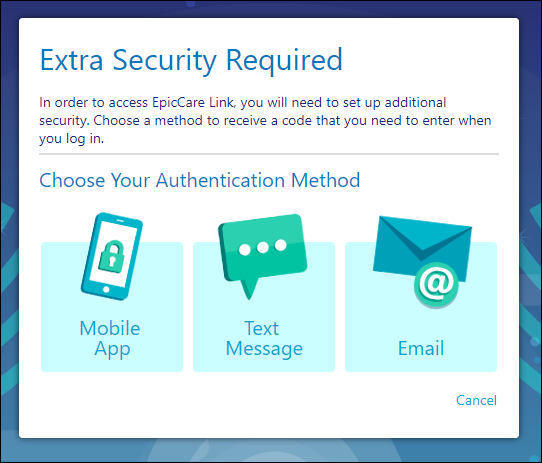
The first time a user logs in to connect after 2FA is
turned on in the system, the user will be required to
authenticate with one of the methods indicated here.
Mobile App authentication requires the use of a SmartPhone with a
camera. Data rates may apply
If you currently use an authentication app, such as DUO or AUTHY, you can continue to
use it by adding a new account and scanning the QR code that displays.
If you do not currently use an authentication app, you can use
EPIC AUTHENTICATOR, available on
Apple iTunes
and Google Play.
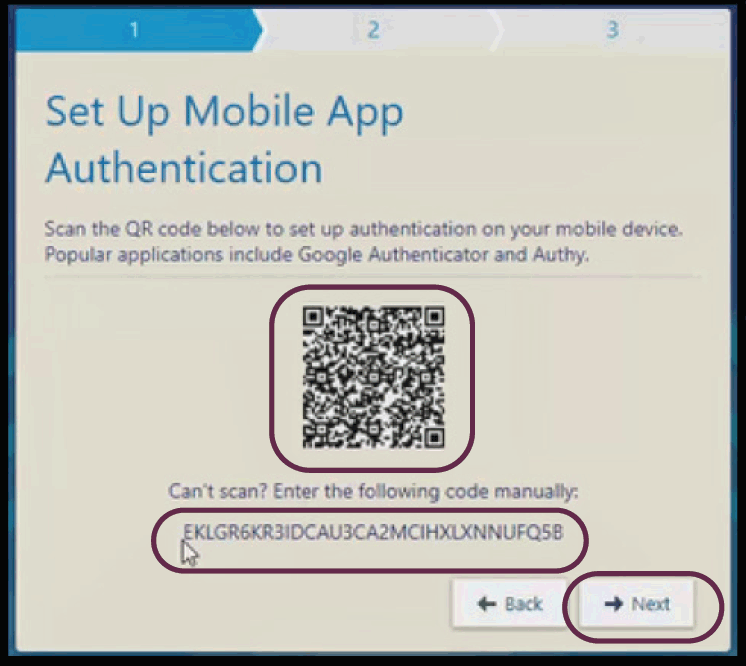
The app will require you to scan a QR code, or you can
enter the code manually. You will need to have your device's
camera enabled to scan the QR code.
When the QR Code displays on the screen, aim your phone camera at the code.
The app will likely automatically capture the code for you, or you may have to snap a picture.
Most apps will also give the option to enter the code manually, which is displayed below the
QR code on the screen
Click Next to continue
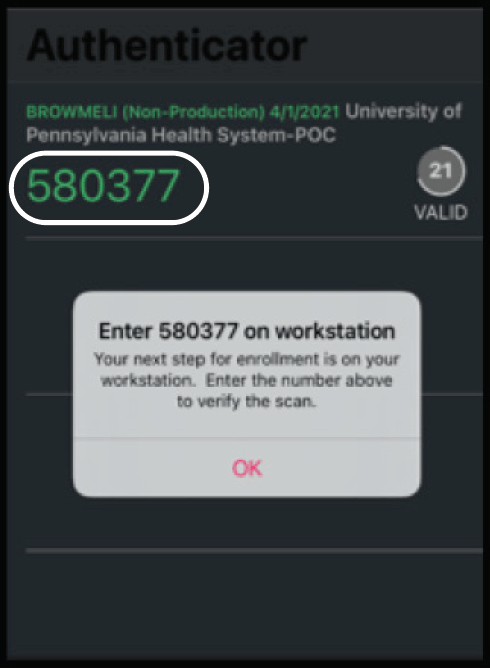
The app will display a six-digit code, along with the amount of time remaining
to use the code.
The app will generate a new code every few seconds, and may vary from app to app. If only a
few seconds remain, wait until a new code is generated.
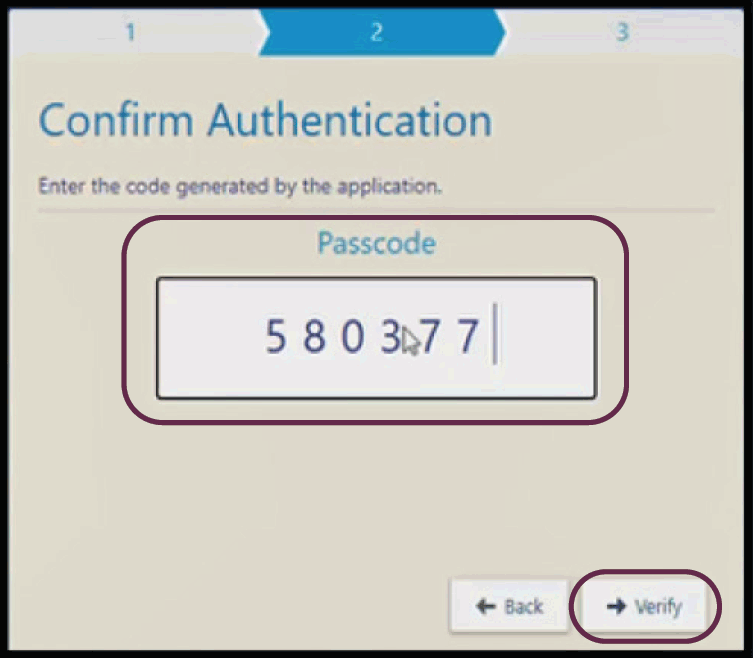
Enter the code in the field displayed on the screen.
Click Verify after entering the code.
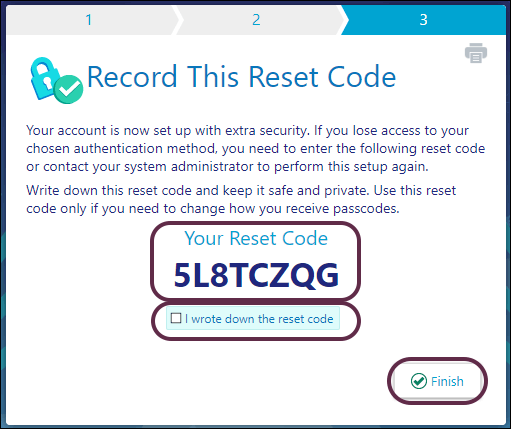
A reset code will then be displayed for the user to write down in case the dual
authentication needs to be reset or if authentication type needs to be changed.
The reset code should be written down and kept in a secure area as it will be
needed it in the event a reset is required. (eg, if you lose or break the phone
used for Two-factor Authentication)
A new reset code will be generated if the authentication is reset
Acknowledge the reset code has been written down by clicking the
check box next to I wrote down the reset code.
Click Finish.
Each time you access the system, you will be required to enter the authentication
code your app generates. Log in to Connect, then enter the new authentication code generated by your app.
Text Message Authentication
Text Message authentication requires the user to have access to a
cell phone with text messaging capabilities. Text message rates may apply.
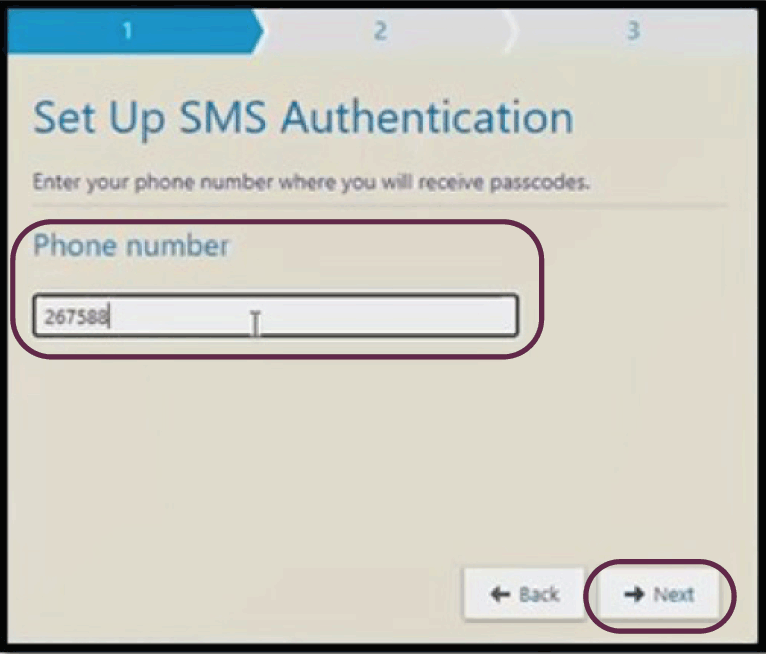
Select Text Message authentication method. Enter your
cell phone number in the field indicated.
Click Next to continue
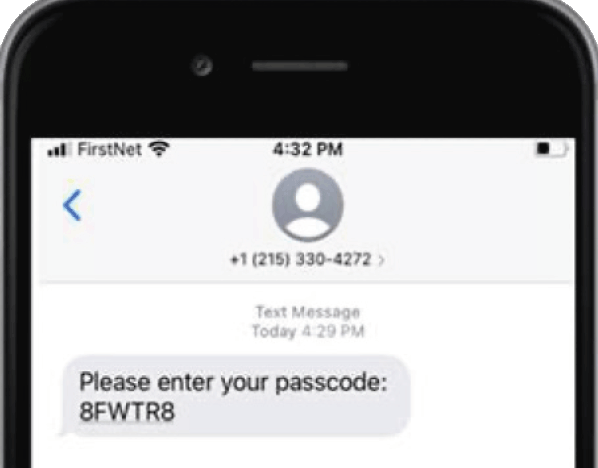
You will receive an SMS text notification.
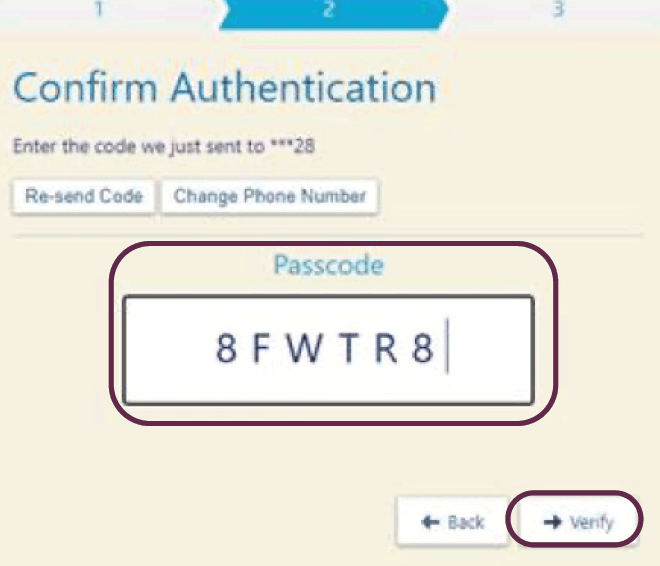
Enter the code sent via text in the field indicated.
Click Verify after entering the code.
The reset code will appear as it did for the other authentication option and
should be written down and kept in a secure area.
Acknowledge the reset code has been written down by clicking the check
box next to I wrote down the reset code.
Click Finish.
A new reset code will be generated if the authentication is reset
Each time you access the system, you will be required to enter an authentication
code sent via text message. Log in to Connect, then enter the new authentication
code sent via text message.
Email Authentication
Email Authentication requires the user to be able to open their email
simultaneously with the PhysicianLink website open. It is recommended to utilize
the same secure business email address that was provided when your
PhysicianLink account was created for the authentication process.
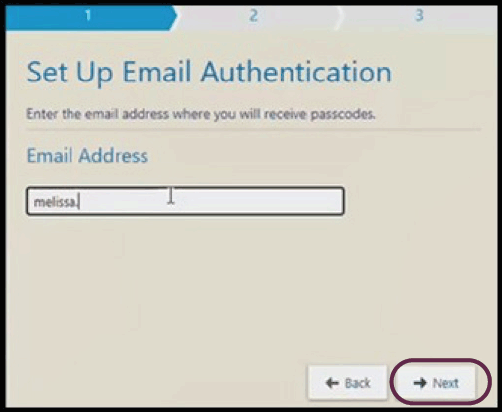
Select Email authentication method. Enter your email
address in the field indicated.
Click Next to continue.
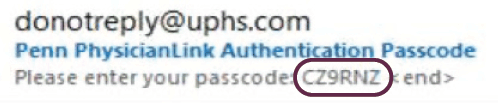
You will receive an email from donotreply@uphs.com.
Open the email and enter the code indicated in the email.
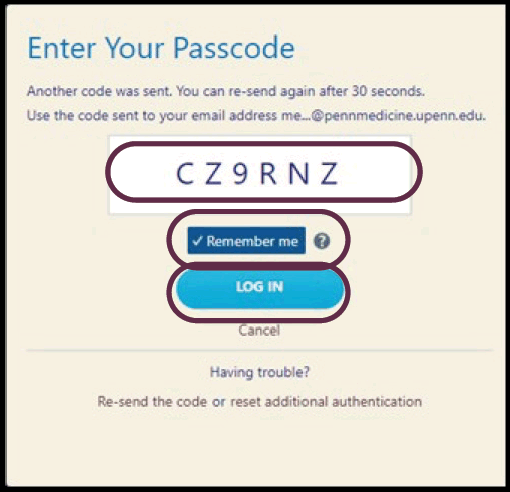
Enter the code and Select Remember me to have the browser
remember you and not require re-authentication for 30 days*.
click Log In.
The reset code will appear as it did for the other authentication
option and should be written down and kept in a secure area.
Acknowledge the reset code has been written down by clicking
the check box next to I wrote down the reset code.
Click Finish.
A new reset code will be generated if the authentication is reset
If Remember Me is not selected or is selected and does
not meet the below conditions, each time you access the system, you will
be required to enter the authentication code your app generates. Log in to Connect,
then enter the new authentication code generated by your app.
Remember Me Setting
If remember me is selected the Two Factor Authentication will be bypassed
ONLY when the following conditions are met:
Cookies are enabled on the workstation
If cookies are cleared the browser will forget the user
The user is logging into the the same browser
For example, if 2FA is set up in an Edge browser but then the user
logs in via a Chrome browser, the application will not remember them.
The user is logging in with the same device/computer
Resetting your authentication
If you need to have your authentication method reset, and you have the reset code you wrote
down when setting up the authentication method you desired, continue with the steps below.
On the Enter Your Authentication Code form, click the
Reset additional authentication hyperlink.
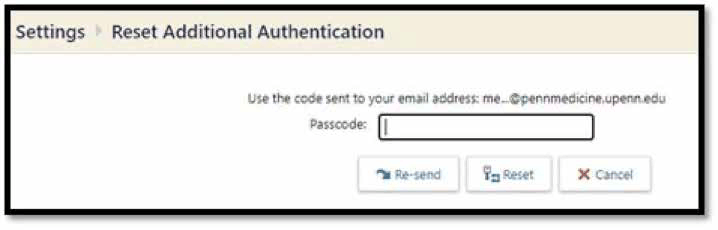
Enter the reset code where indicated and select Reset to continue.
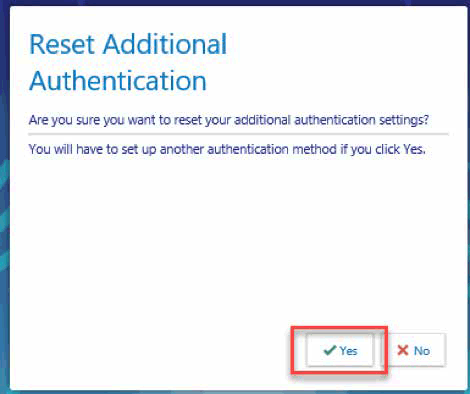
Confirm that you want to reset authentication by clicking Yes.
You can then select the authentication method desired, and start over
with a new authentication
If you do not have your reset code but are still able to
login to PhysicianLink you can update the two-factor authentication page from the settings menu.
If you do not have your reset code and are not able to log in to
PhysicianLink you will need to call the Penn Medicine Help Desk at
215-662-7474 to regain access. Your site administrator
will not be able to update or reset your two-factor authentication.